WordPress: People Block
The People Block is a custom block developed by the Office of Communications and Marketing.
Purpose
The People Block offers an easy consistent way to list members of staff, faculty, students or other groups of people.
Each individual person’s entry within the block has a number of fields that can be customized to suit the purpose of the block. e.g. a block containing faculty may list their position, a named professorship, where they obtained their PhD etc. There are also specific fields for location (e.g. room or building), phone number and email address. By using these fields a consistent layout throughout the page can be maintained.
Availability
The Person Block may only be displayed on internal pages.
Elements and Settings of the People Block
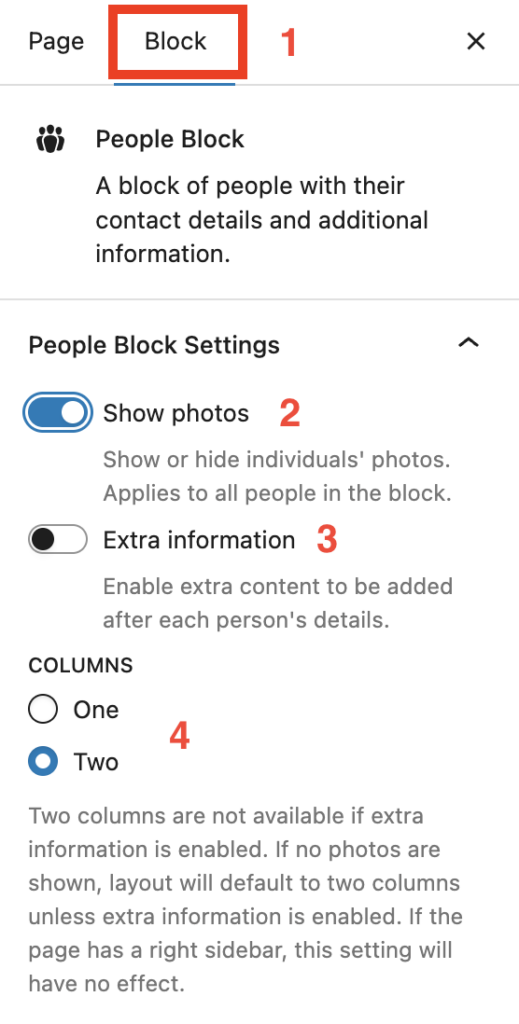
The block has a number of customizable settings. These are configured in the settings sidebar. The following are available to all editors:
- Make sure you have the people block selected in the editor and Block tab selected in the settings sidebar.
- Toggle to show or hide individual people’s photo (default: show photos)
- Toggle to add additional copy for each individual e.g. for a bio or to list areas of interest of job responsibilities (default: no additional copy)
- Selectors for one or two column layout for individual people within the block (default: one, unless photos disabled, in which case two columns will be the default. If there is a right sidebar on a page, they layout is forced to remain in one column)
Settings Only Available to Administrators
An additional setting is available for administrators and the website manager. This ensures proper nesting of headings and thus compliance with accessibility standards. Editors do not have access to this setting but it is included for reference of administrators.
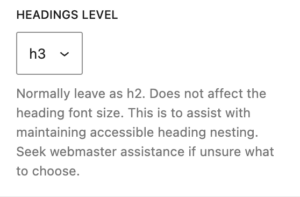
Select an appropriate headings level for the individual person blocks with the people block. The element to consider is the person’s name. The level chosen will depend on the overall people block’s position with the page content hierarchy. Note this does not affect the size or appearance of the person’s name; it’s just to ensure correct nesting.
Elements and Settings of Individual People Within the Block
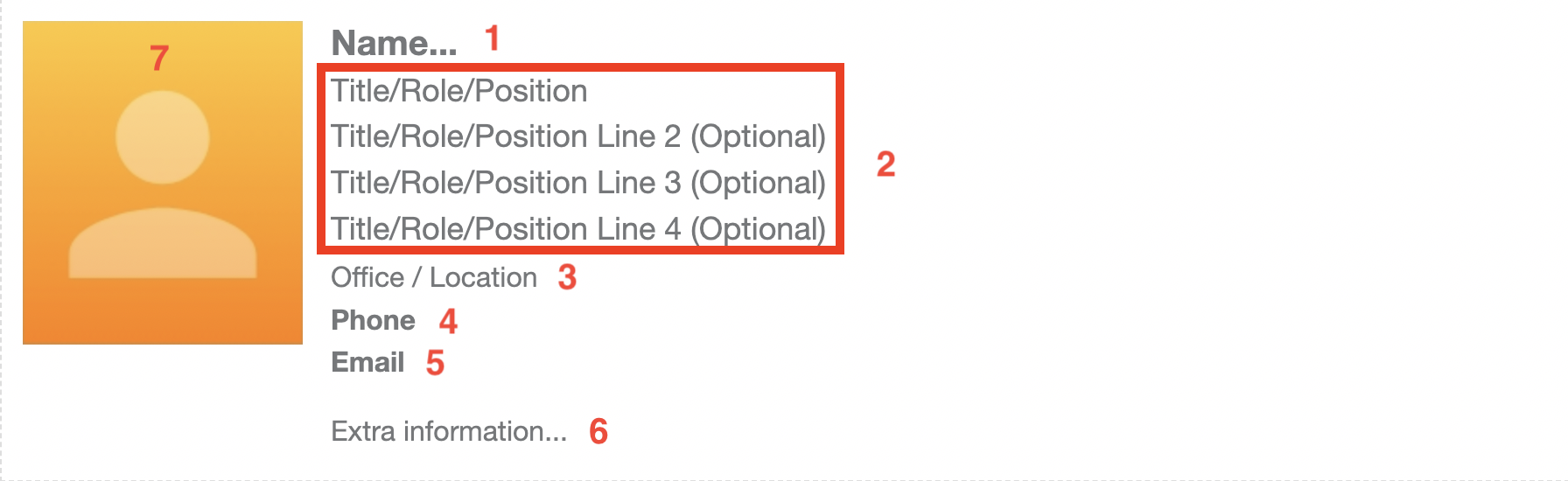
1. Name
Person’s name, with the ability to add a link to another site or page. E.g. a faculty member may link to a personal site or a page with more information about their interests or taught courses.
2. Title/Role/Position
Up to four rows of titles or roles. How you use these fields is up to you and the purpose of the People Block as a whole. Try and maintain a consistent use of these fields across the individuals in the People Block. Examples of how to use the Title/Role/Position fields:
- Job title
- Qualification(s)
3. Office/Location
Uses for this optoinal field include an office, building or more generically a city and/or state or country:
- Olin B123
- Sacremento, CA
- London, UK
4. Phone
This optional field automatically formats a phone number to meet the College’s editorial style guide i.e. xxx.xxx.xxxx. The number will also be clickable and will activate a devices phone functionality (if available). Do not use this field for anything other than a North American phone number.
5. Email Address
This optional field automatically formats an email address to be a clickable link that will activate the user’s device’s email program.
6. Extra Information
Use this optional section to add extra information. This could be a brief bio, a list of job responsibilities, research interests or hobbies. This section is enabled at the People Block-level. If not required for all individuals it can therefore be disabled. If needed for one or more individuals, it may still be left blank if not required for an individual.
Only paragraphs and lists are available in this section.
7. Photo
Whether photos are enabled for individuals is set at the parent People Block level (see Elements and Settings of the People Block above).
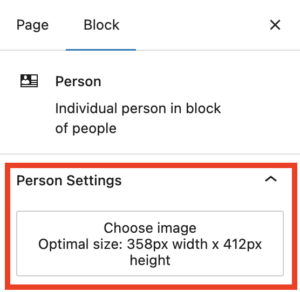
To add a photo for an individual, make sure their block is selected. Click the Choose image button in the person settings in the right sidebar. The media browser opens and allows you to select and existing photo or upload a new one.
Photo Specifications
For optimal display, the image should be 358 pixels wide by 412 pixels high. If you attempt to upload an image that does not meet these specifications, it will still be set as the person’s photo. However, it will be cropped and centered so that the image appears with in correct ratio. This may not give an ideal appearance, depending on its original composition. If you need assistance, submit a website help request.
Use JPEG image format for photographs, not PNG.
Example: Department of Beagles

Brian Beagle
Professor of Snuffles and Food DetectionPhD University of LifeB1234909.123.4567brian@beagles.com
Brian’s favorite food of all time is banana.

Betty Beagle
Professor of Howls and Perimeter ChecksPhD University of the StreetsA4321909.321.7654betty@beagles.com
Betty likes to eat meat and bark at passing dogs. She likes cuddles and destroying shoes.