HeadshotFlip: Learning Every Name in the Room
August 21, 2026HeadshotFlip
Learning student names is one of the simplest, most powerful things an instructor can do to build community in a classroom — and one of the hardest to do well at scale. For years, the HMC community used a flipcard-style solution CIS provided: an Anki deck. It worked, but it was a static file that had to be regenerated, redistributed, and re-imported every term, and it could only ever be one thing — flipcards.
During the Spring ’26 semester, the ARCS team set out to build something better. A flipcard system was good, but what if we could offer different game types? What if students could tell us how to say their names, in their own voices? What if the whole thing lived right inside Canvas, always in sync with the roster, with nothing to download or install?
The result is HeadshotFlip, an LTI application for Canvas.
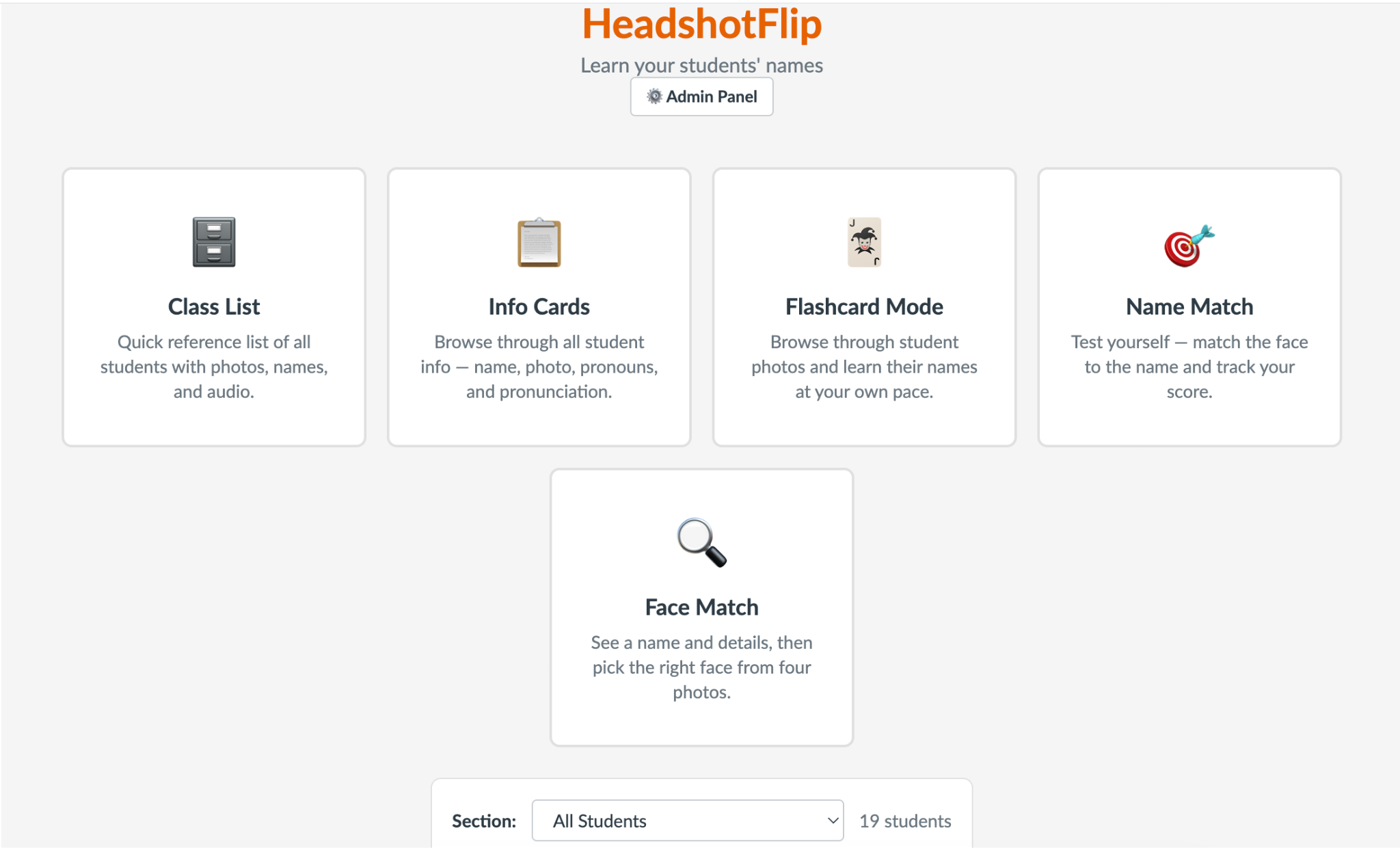
Five Ways to Learn
When faculty click on the tool in Canvas, they’re greeted with a selection of game modes, arranged roughly from “browse” to “quiz”:
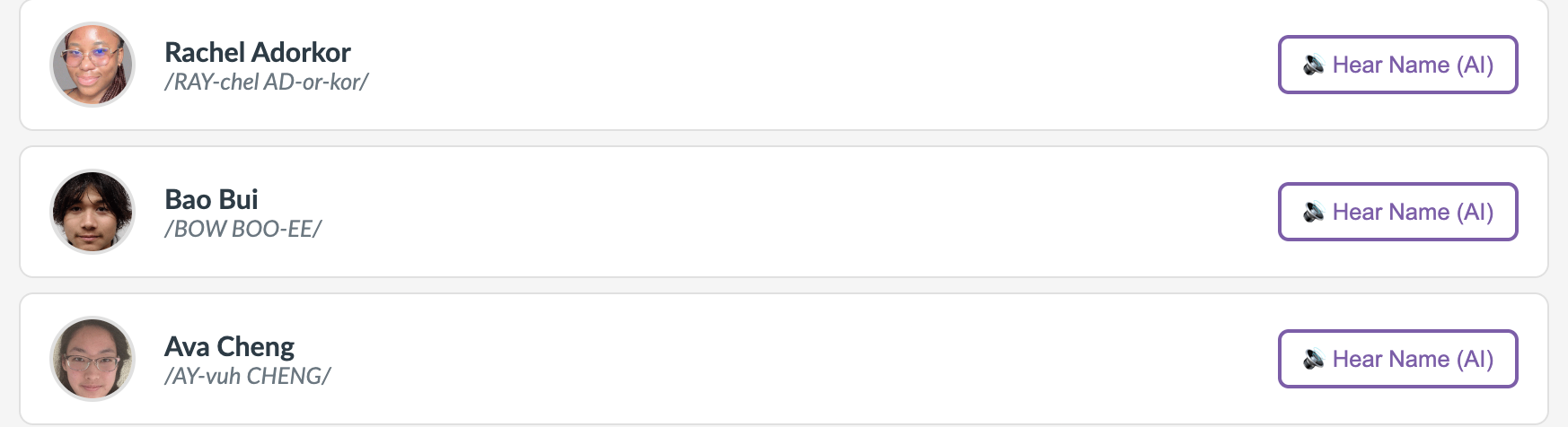
Class List
The most basic view: profile pictures, student names, phonetic spellings, and a button to hear how each student’s name is pronounced. Great as a quick pre-class refresher or a reference while grading.
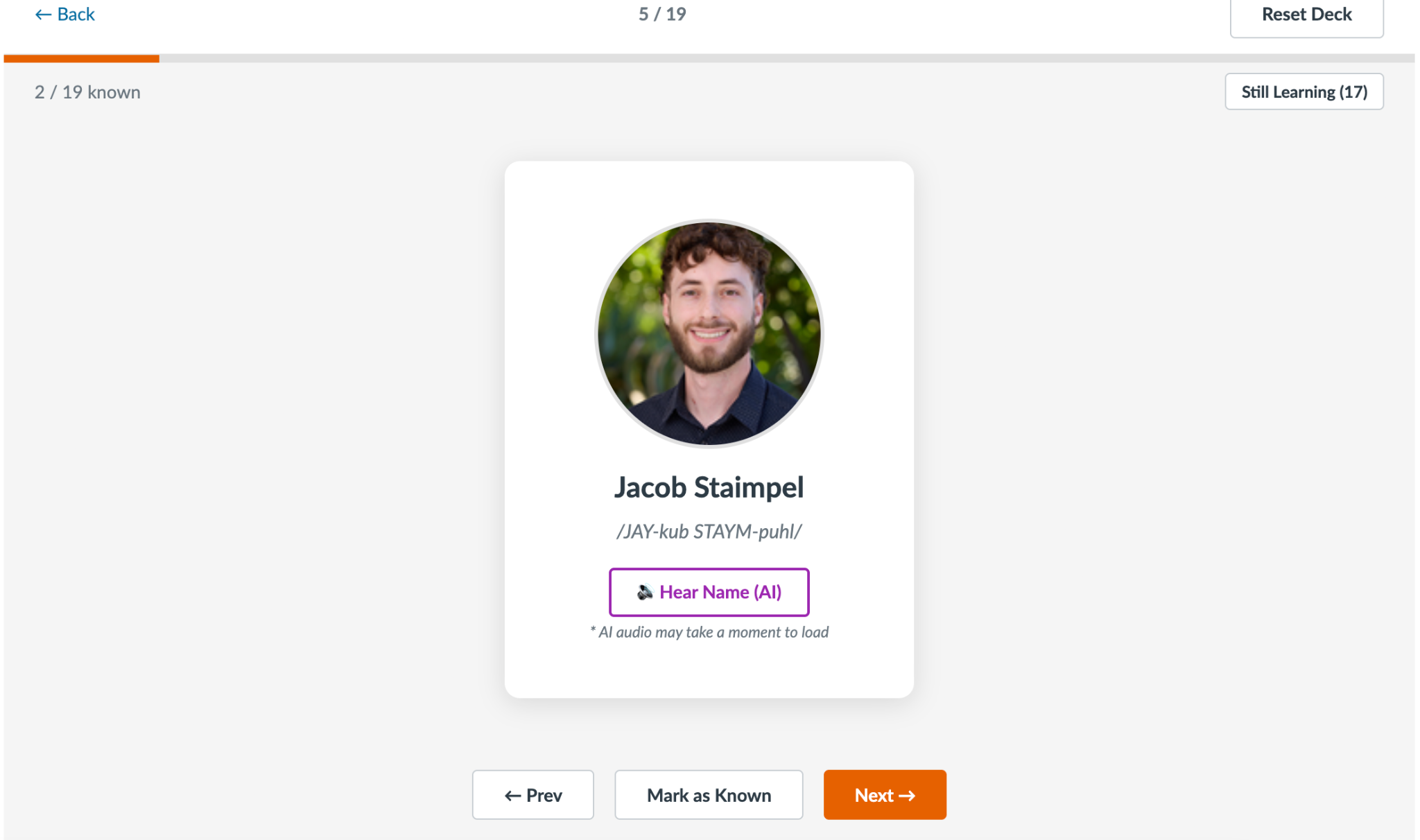
Info Cards
A card for each student, with their picture, name, phonetic pronunciation, and a play button for audio. The same information as the Class List, in a more visual, browsable layout.
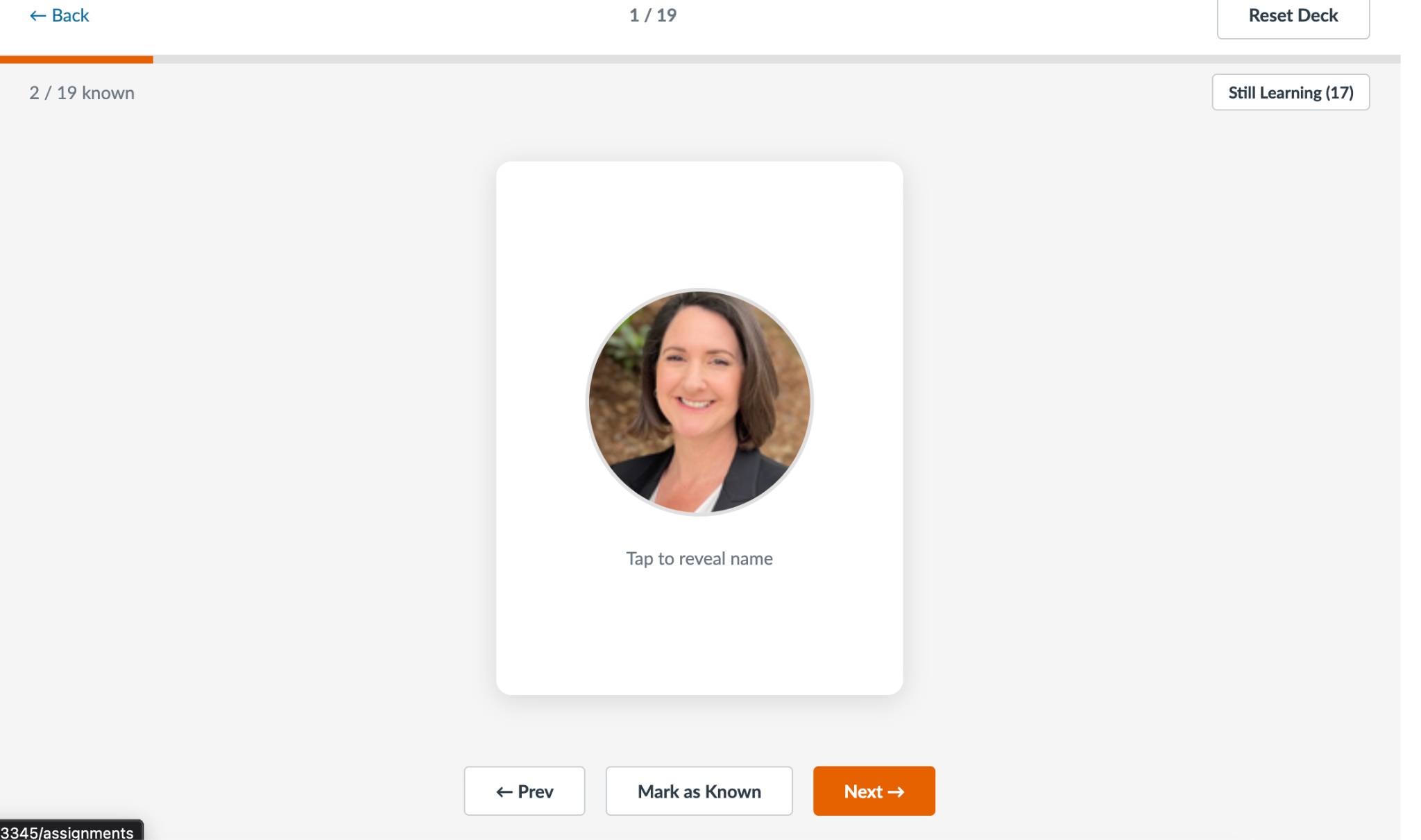
Flashcard Mode
The spiritual successor to the Anki deck. A traditional flashcard experience: see the photo, guess the name, flip the card to check yourself.
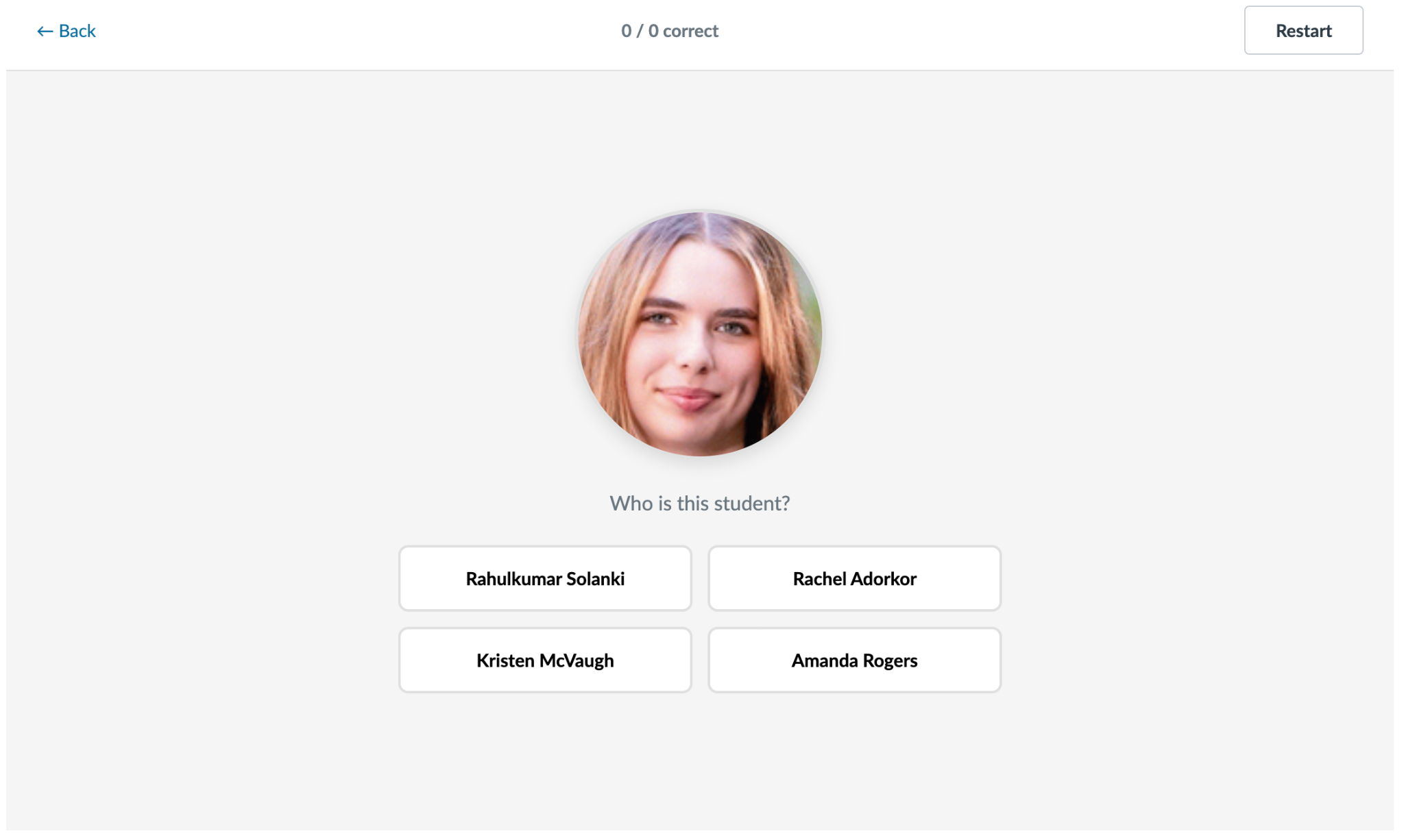
Name Match
Takes memorization a step further. You’re shown a profile picture and four names, and quizzed on which name matches the face.
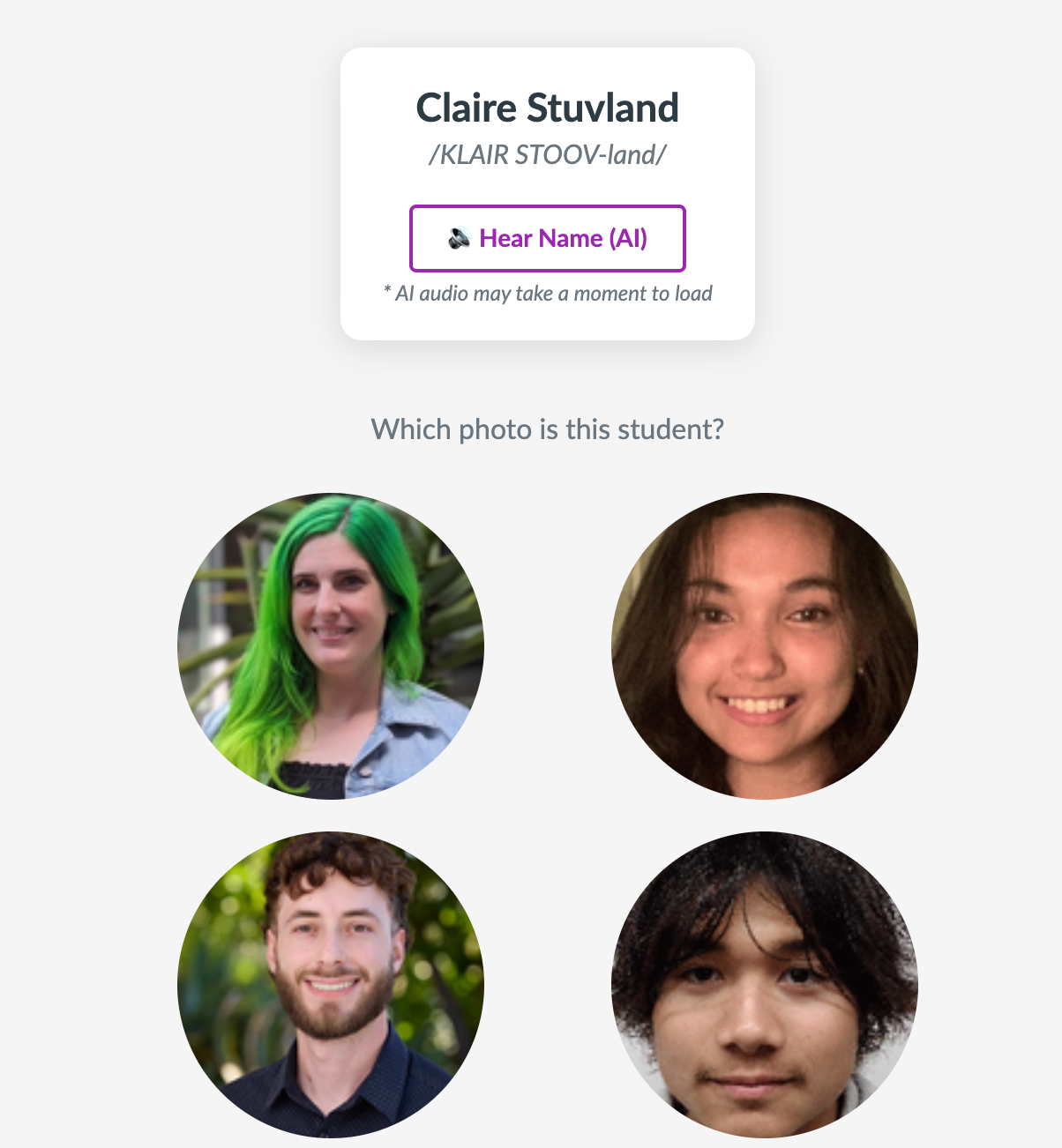
Face Match
Reverses the idea: you’re given a name and four profile pictures, and asked to pick the right face.
As instructors work through the quiz modes, HeadshotFlip keeps track of which students they’ve marked as “known” — separately for each course they teach — so they can focus their practice on the names they haven’t mastered yet.
Students Own Their Names
Ensuring that students are represented the way *they* want to be represented was a core design goal from the start. A tool for learning names is only as good as the names in it — and nobody knows how to say a student’s name better than the student.
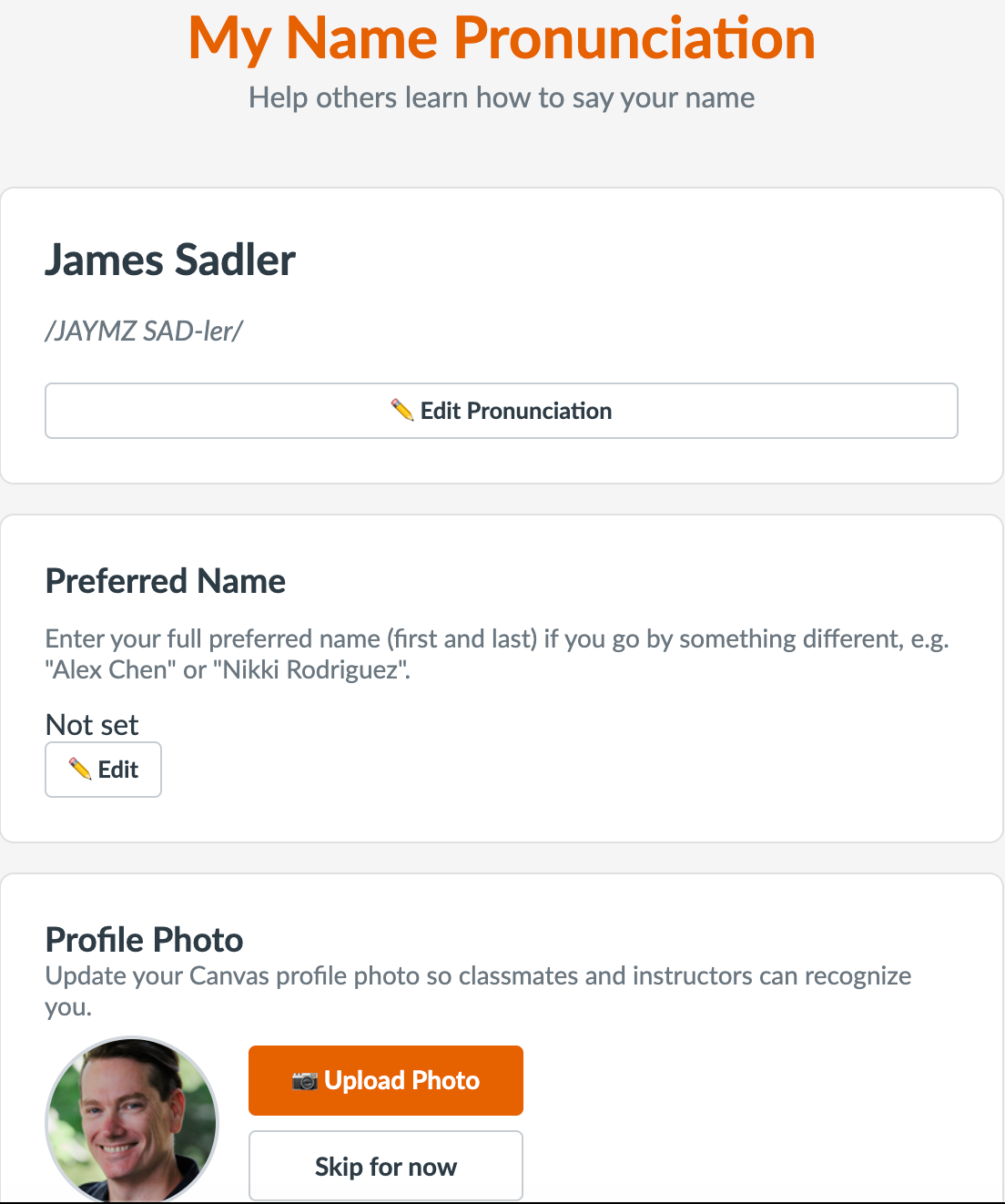
HeadshotFlip includes a student-facing profile page, delivered in their Canvas User section and as a Canvas assignment in a course as My Name Pronunciation, where each student can:
- Set a “preferred name”, if the roster name isn’t what they actually go by.
- Write or edit the phonetic spelling of their name.
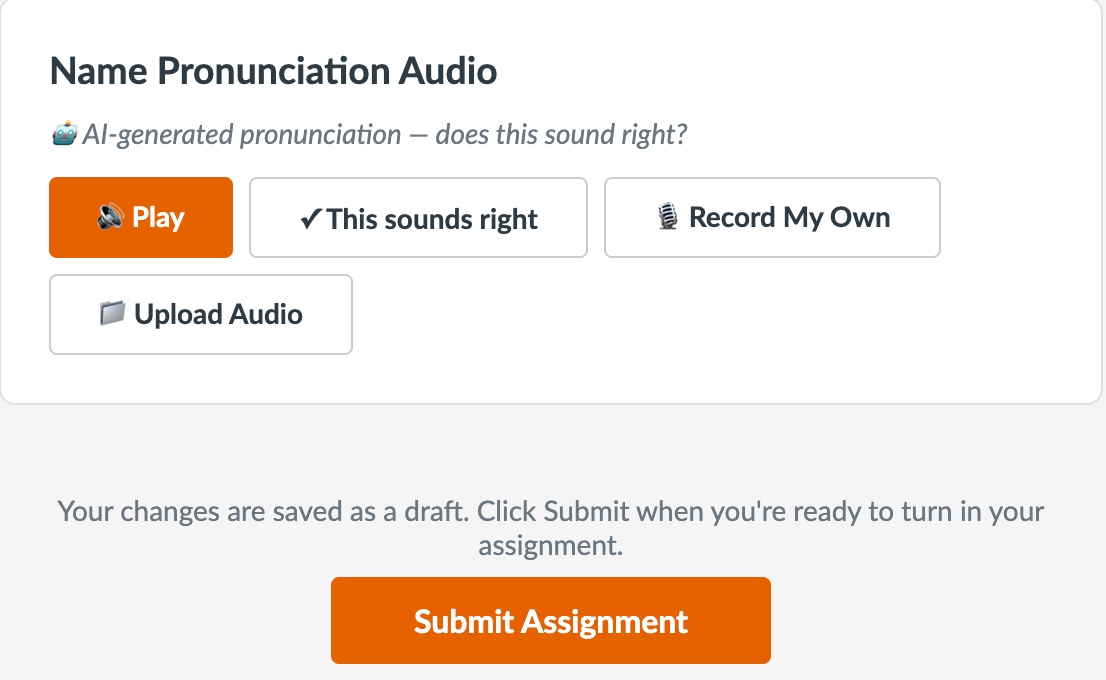
- Confirm a generated* version of their name pronunciation or record their own pronunciation audio.
- Upload and crop a profile photo if their Canvas avatar is missing one.
- *For students who haven’t recorded anything, HeadshotFlip falls back to a Google Gemini generated pronunciation: it synthesizes an audio clip of the name and a suggested phonetic spelling, which the student can then confirm, correct, or replace at any time. The student’s own input always wins.
How to Get It
HeadshotFlip is enabled in all Canvas course sites by default now. It is available to all Faculty and site admins in a course. If for some reason the tool is not enabled, it can be re-enabled by:
- Go to the Settings tool in the desired course
- Select the Navigation tab at the top
- Scroll toward the bottom of the page to find the HeadshotFlip tool
- Click and drag the tool to the top group of enabled tools or click on the 3 dots to the right and select Enable
- Click on the Save button
Getting Help
If, for whatever reason there is an issue with HeadshotFlip in a course, please contact the HMC Helpdesk for support.