How to Add an Authorized User for Student Accounts
Students have full control over who they authorize to make payments on their student account and when that access is granted. Authorized users may include family members and others designated by the student. In compliance with the Family Educational Rights and Privacy Act of 1974 (FERPA), a student’s financial record may not be shared without their consent.
Student Accounts can only share account information with individuals the student has designated as authorized users. Scholarship sponsors should not be added as authorized users or use this process to make scholarship payments, as doing so may result in incorrect tax reporting. Please follow the College’s scholarship payment process instead.
Below is a list of step-by-step instructions on how a student can add an authorized user.
How to add your Authorized User(s)
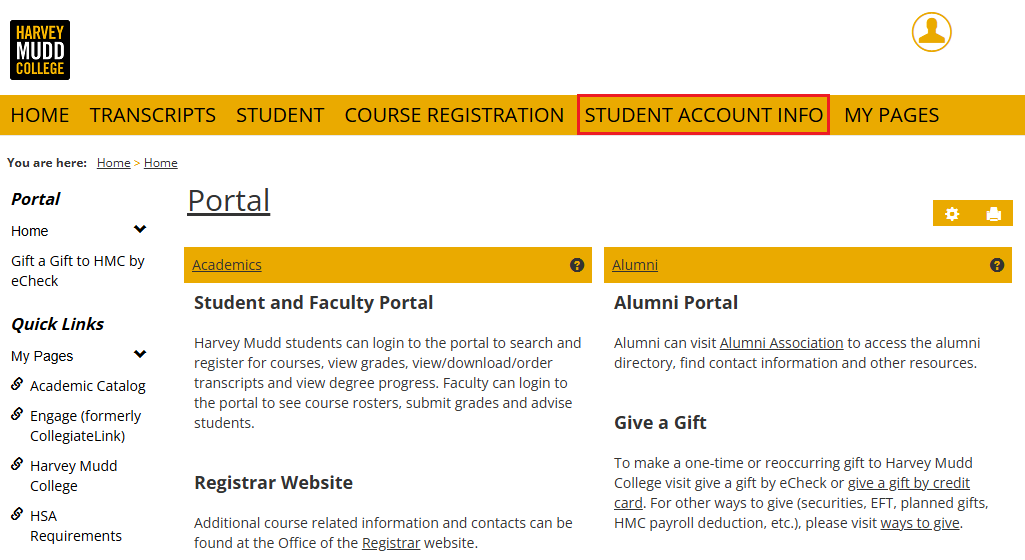
- Login to the student portal and navigate to the Student Account Info tab at the top of the webpage.
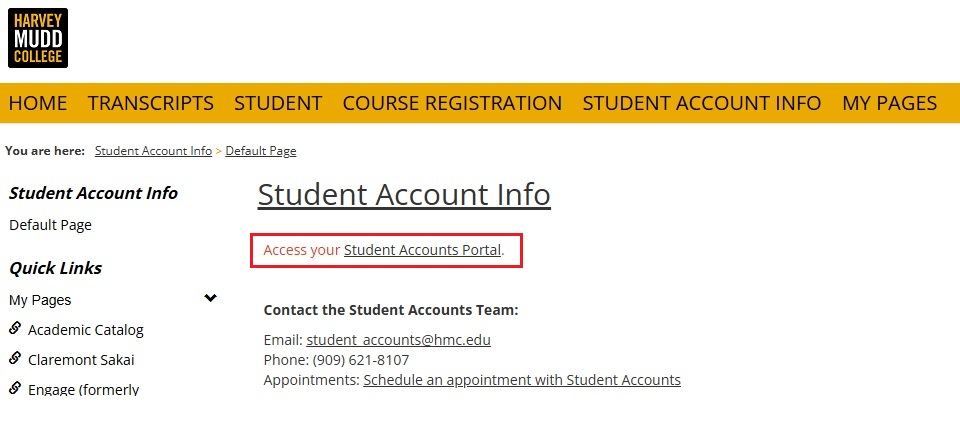
- Under the Student Account Info title there will be a link to Access your Student Accounts Portal. Select the link and you will be directed to the Student Accounts Portal.
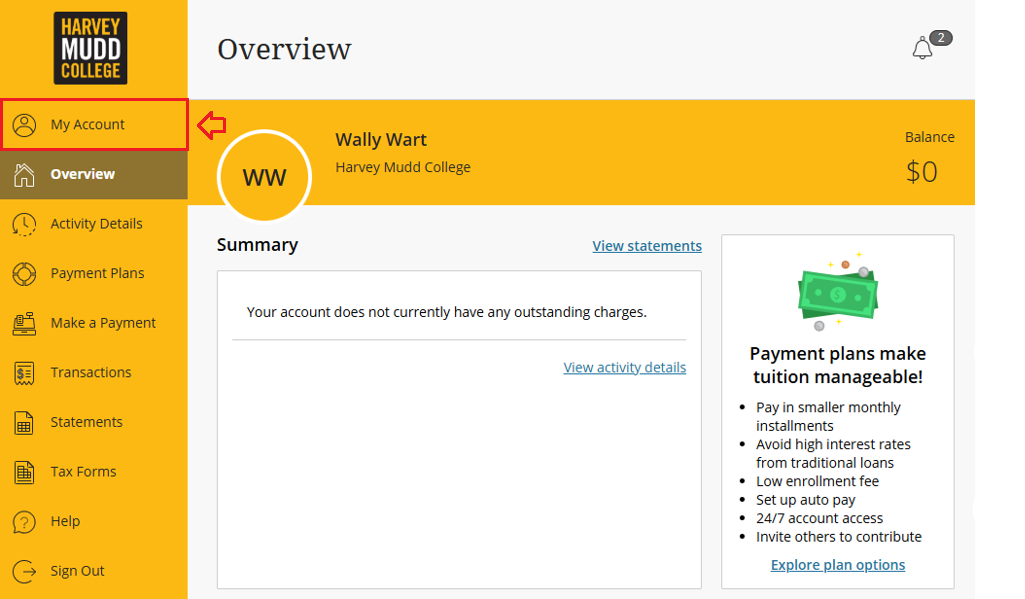
- Select My Account on the left side of the screen under the Harvey Mudd College logo.
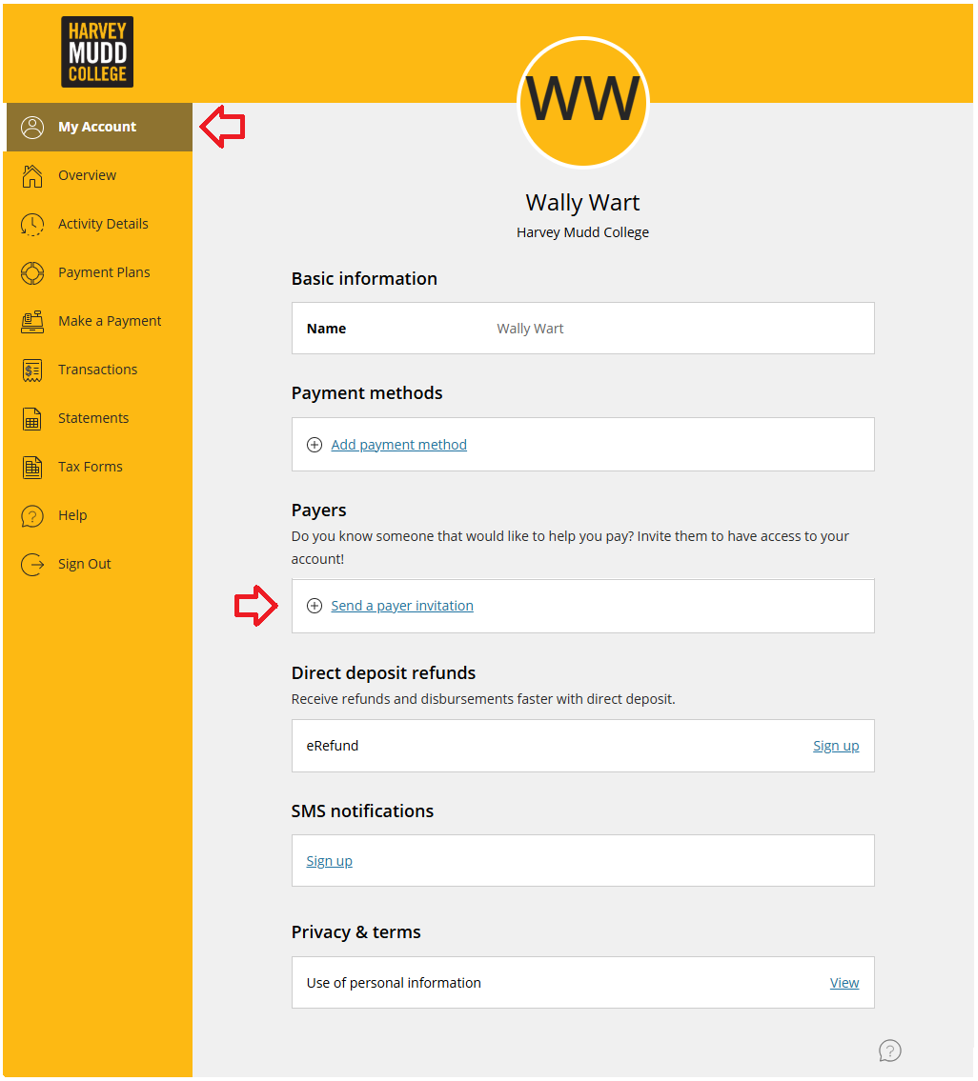
- On the “My Account” tab, scroll down to Payers and select the link to “Send a payer invitation.”
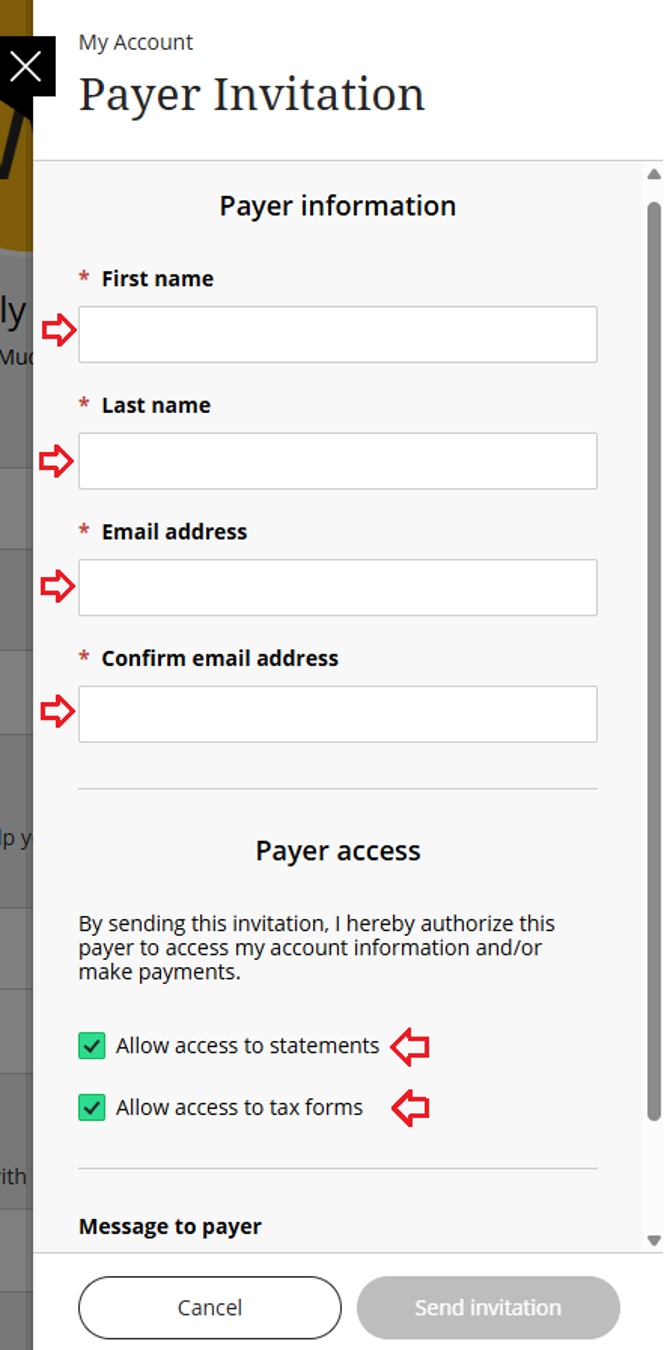
- The Payer invitation will pop up on the right side of your screen. You will need to complete the following sections:
- First name
- Last name
- Email address
- Confirm email address
- If you leave “allow access to statements” checked, your payer will have access to your student account statements.
- If you leave “allow access to tax forms” checked, your payer will have access to your 1098-T forms once available.
- Please note, all payers will have access to your Activity Details which include any charges, credits or payments posted to your student account.
- Once the student has authorized a user, they will receive an email containing their username and temporary password to access the website.
- Log in to the Illumia website at https://commerce.cashnet.com/HMCPay using the username and password provided to you by email.
To remove an authorized users access
To remove a payer’s access, navigate to the “My Account” page, select the payer you wish to remove access, then click on the option to “remove payer.”